Getting Started
Get Pointa up and running in just a few minutes. This guide walks you through installation, configuration, and creating your first annotation.
Overview
Setting up Pointa involves three simple steps:
- Install the Chrome extension - Add Pointa to your browser
- Configure your AI tool - Connect Pointa to Cursor, Claude Code, or another AI coding agent
- Create your first annotation - Start annotating and let AI implement
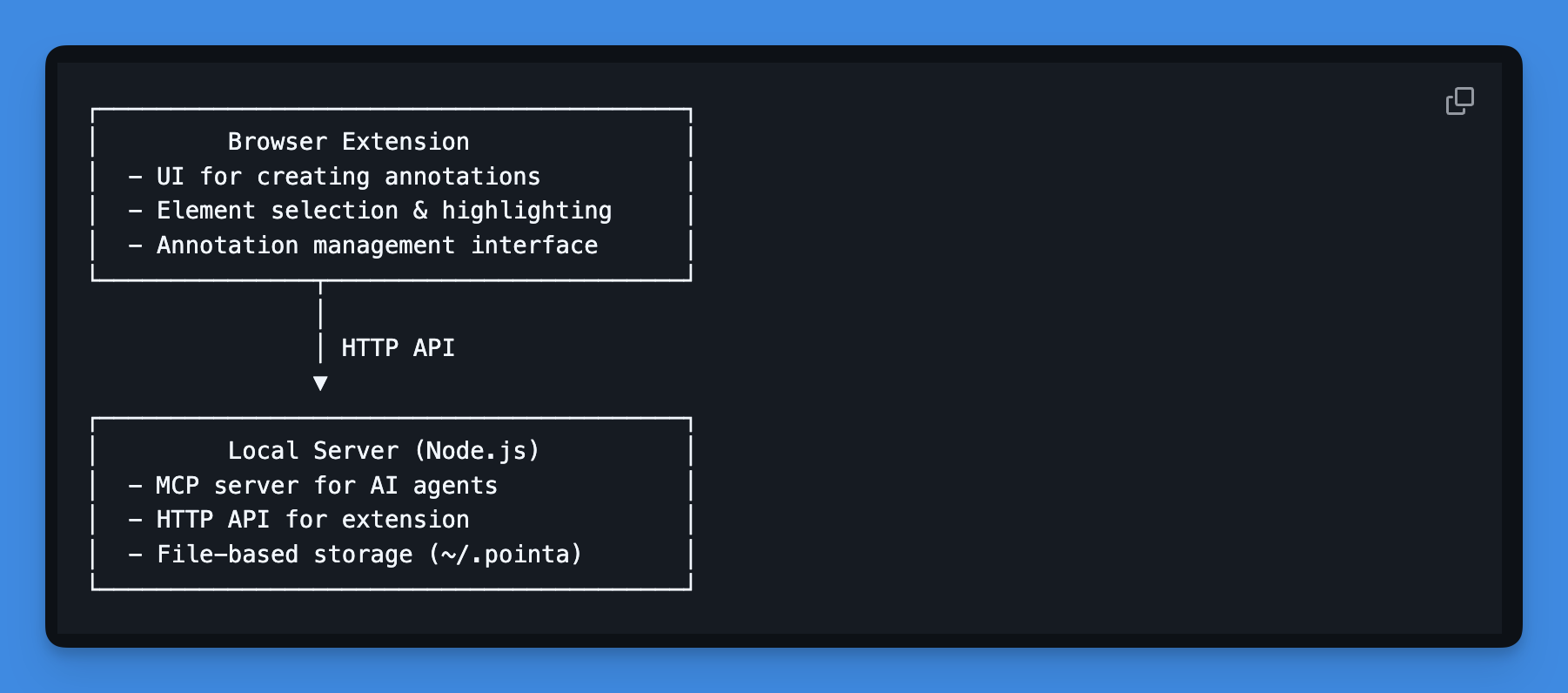
How It Works
When you create an annotation in the browser:
- You click an element and add feedback
- The extension sends the annotation to the local server
- Your AI coding agent reads annotations via MCP protocol
- AI implements the changes in your actual code files
All communication happens locally on your machine. Your annotations, code, and data never leave your computer.
Next Steps
| Guide | What You'll Learn |
|---|---|
| Installation | Install the Chrome extension and local server |
| MCP Setup | Configure your AI coding tool (Cursor, Claude Code, etc.) |
| First Annotation | Create your first annotation and see AI implement it |