Installation
This guide covers installing the Pointa Chrome extension and understanding the local server setup.
Install the Chrome Extension
Option A: Chrome Web Store (Recommended)
- Visit the Pointa Chrome Web Store page
- Click Add to Chrome
- Confirm by clicking Add extension
The extension icon will appear in your browser toolbar. You may need to click the puzzle piece icon and pin Pointa for easy access.
Option B: Load Unpacked (For Developers)
If you want to run the development version:
-
Clone the repository:
git clone https://github.com/AmElmo/pointa-app.git -
Open Chrome and navigate to
chrome://extensions/ -
Enable Developer mode (toggle in the top-right corner)
-
Click Load unpacked
-
Select the
/extensiondirectory from the cloned repository
About the Local Server
Pointa requires a local server to:
- Store your annotations
- Communicate with AI coding agents via MCP protocol
- Manage images and bug reports
Good news: You don't need to install the server manually! When you configure your AI tool (next step), the server starts automatically using npx.
Automatic Server (Recommended)
When you add the Pointa MCP configuration to your AI tool, it includes:
{
  "command": "npx",
  "args": ["-y", "pointa-server"]
}
This automatically:
- Downloads the server if not present
- Starts the server when your AI tool opens
- Keeps the server up-to-date
Manual Server Management (Optional)
For advanced users who prefer manual control:
# Install globally
npm install -g pointa-server

# Start the server
pointa-server start

# Check status
pointa-server status

# Stop the server
pointa-server stop
The server runs on port 4242 by default. See Server Commands for more options.
Verify Installation
After installing the extension:
- Navigate to any localhost page (e.g.,
http://localhost:3000) - Click the Pointa extension icon in your toolbar
- You should see the Pointa sidebar appear
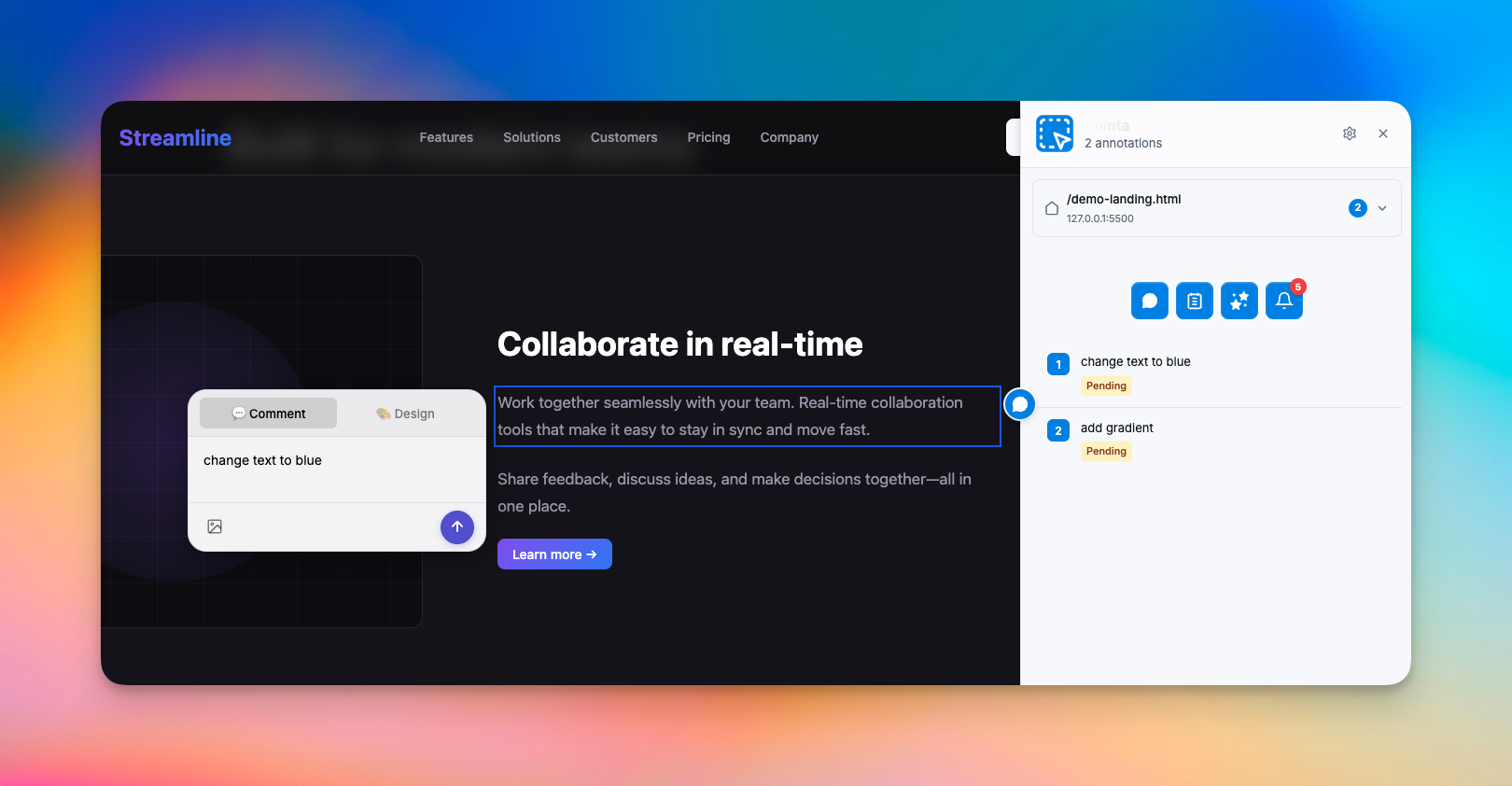
If you see a "Server not connected" warning, that's expected until you complete the MCP Setup in the next step.
Supported Browsers
Pointa works with any Chromium-based browser:
- Google Chrome
- Microsoft Edge
- Brave
- Arc
- Opera
- Vivaldi
Note: Firefox and Safari are not currently supported due to extension API differences.
Supported Development URLs
Pointa activates on local development URLs:
localhost(any port)127.0.0.1(any port)*.localdomains*.testdomains
Production websites are not supported by design to keep your development workflow focused.
Next Step
Continue to MCP Setup to connect Pointa with your AI coding tool.